
SimpleRange Navigator & Assist
Buy pullbacks in uptrends and sell rallies in downtrends, with the entry, stop-loss and 1:2 target drawn for you. Trade it manually with the indicator, or let the semi-automatic EA place the orders.
What SimpleRange does
SimpleRange is a rule-based pullback method. It trades only in the direction of the 200-period moving average and waits for price to pull back to the outer Bollinger Band. When a candle closes back in the trend direction, it enters with a fixed stop-loss and a 1:2 target.
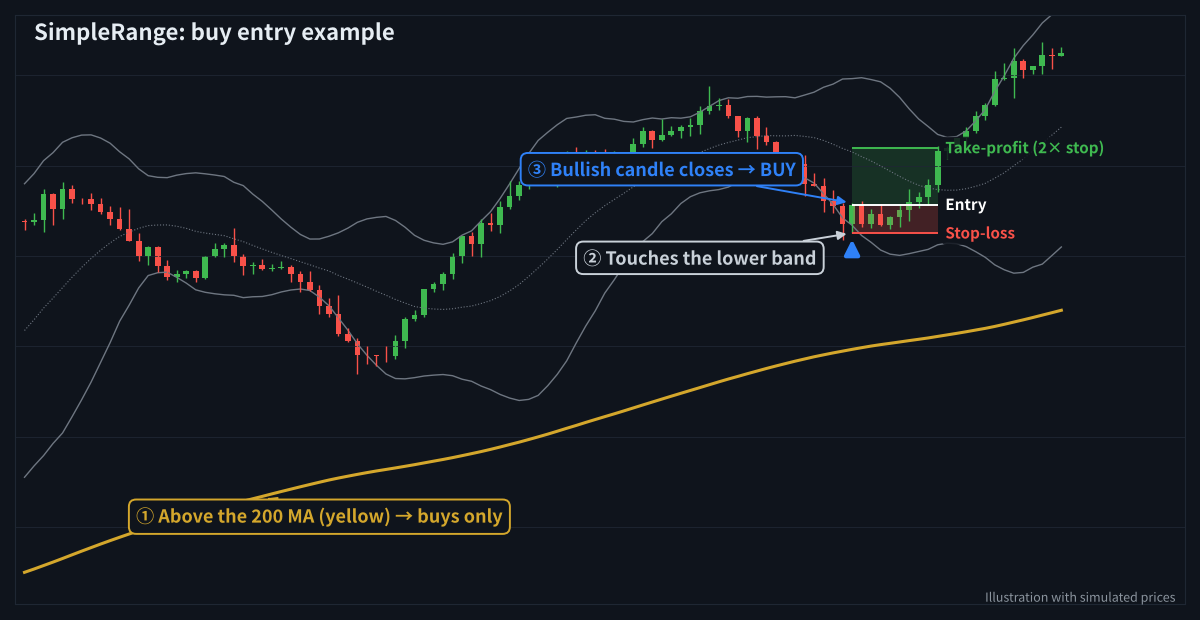
A buy example: above the 200 MA, touch of the lower band, bullish candle closes → entry
Entry rules
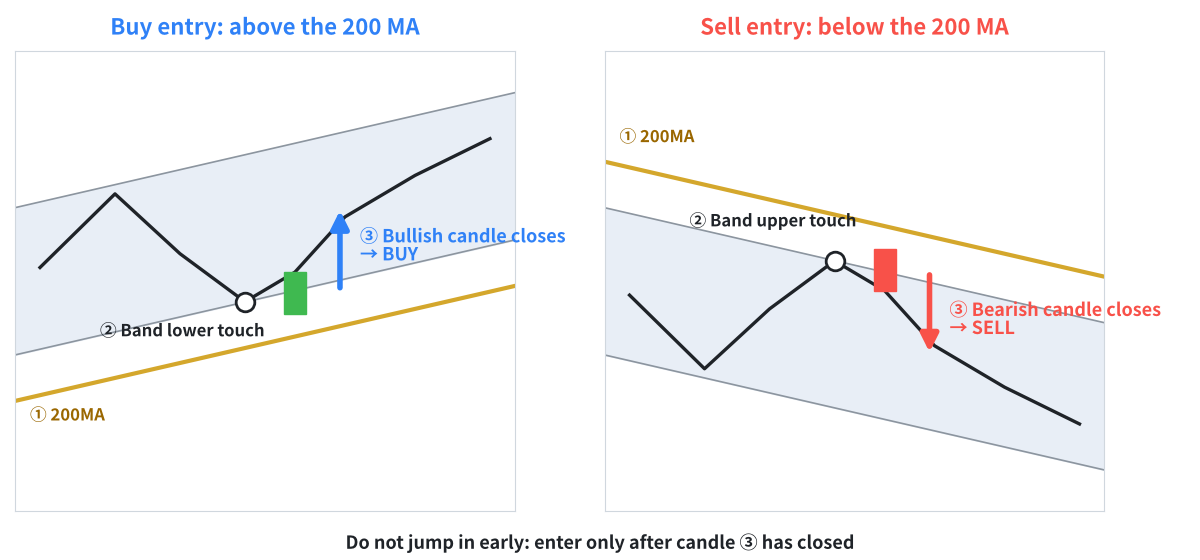
Buy above the 200 MA, sell below it. Enter only after the signal candle closes.
Buy
- Price is above the 200 MA.
- The low touches the lower Bollinger Band (−2σ).
- A bullish candle closes within 3 bars, back inside the band → buy at the close.
Sell
- Price is below the 200 MA.
- The high touches the upper Bollinger Band (+2σ).
- A bearish candle closes within 3 bars, back inside the band → sell at the close.
Stop-loss and take-profit
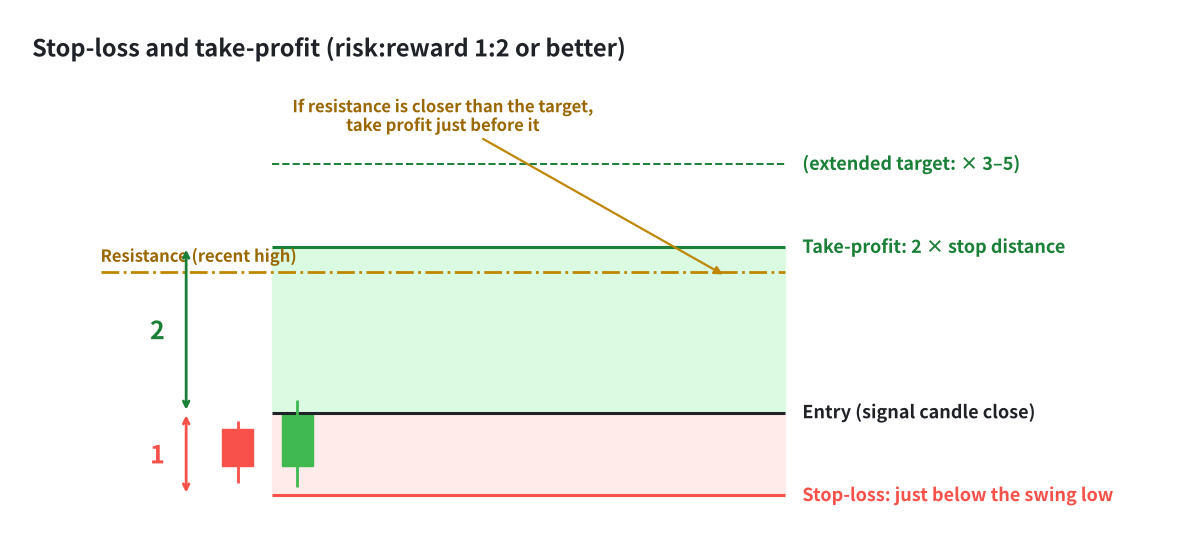
Stop just beyond the swing; target at 2× the stop distance, or just before resistance
- Stop-loss: just beyond the low (sell: high) of the touch-to-signal candles, with a 1-pip buffer. A fixed pip value per timeframe is also available.
- Take-profit: 2× the stop distance. If a recent high (sell: low) sits before the target, the target can be moved just before it (minimum 1.5R).
- Two losses in a day in the same direction → that direction is skipped for the rest of the day.
- Friday: no new signals from 21:00 server time.
How to use the Navigator (indicator)
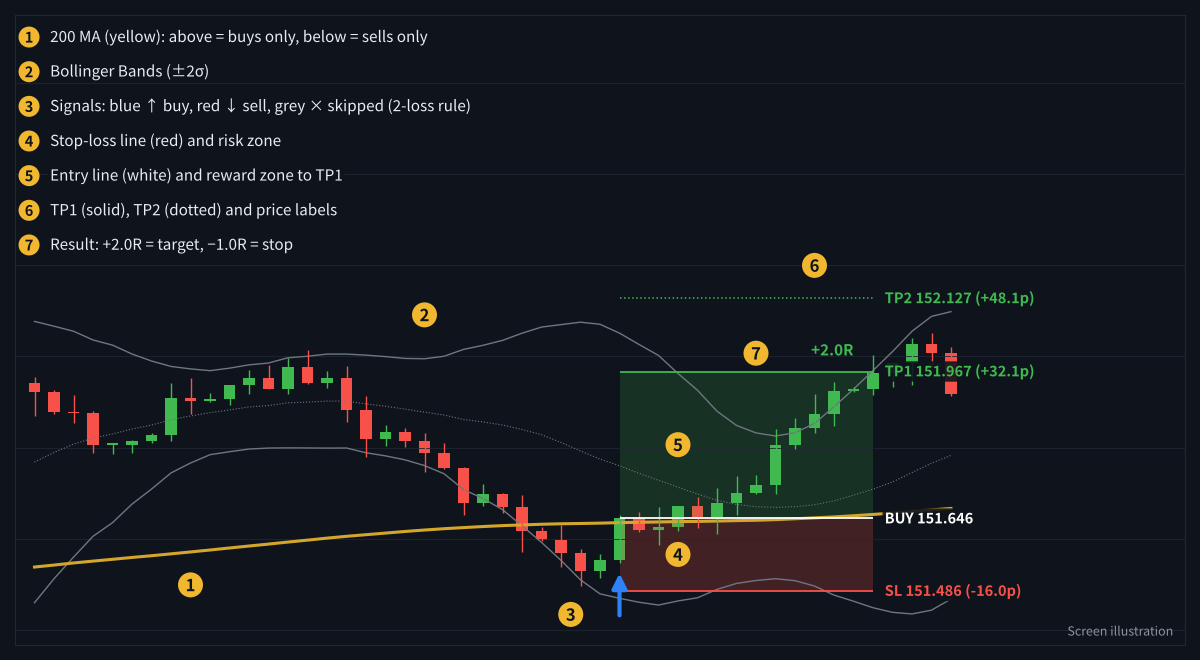
What you see on the chart
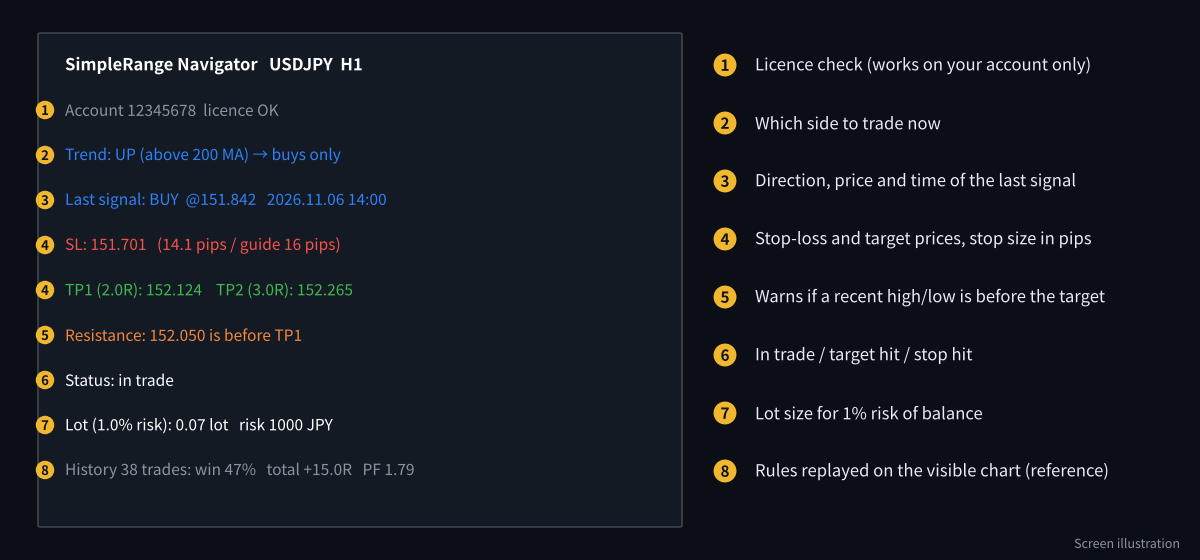
The information panel in the top-left corner
- Attach SimpleRange Navigator to a chart (H1 is a good start; M15 and H4 also work).
- Check the trend line in the panel: it tells you whether to look for buys or sells.
- Wait for an arrow. The entry, stop-loss and targets are drawn automatically, with the recommended lot for 1% risk.
- Use alerts or push notifications so you do not have to watch the chart.
How to use the Assist EA (semi-automatic)
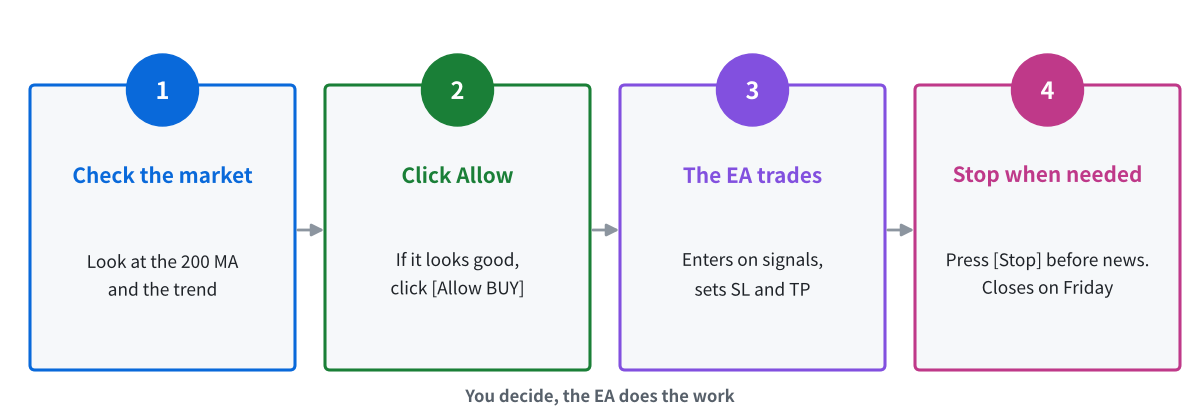
You decide the direction; the EA handles entries, stop-loss and take-profit
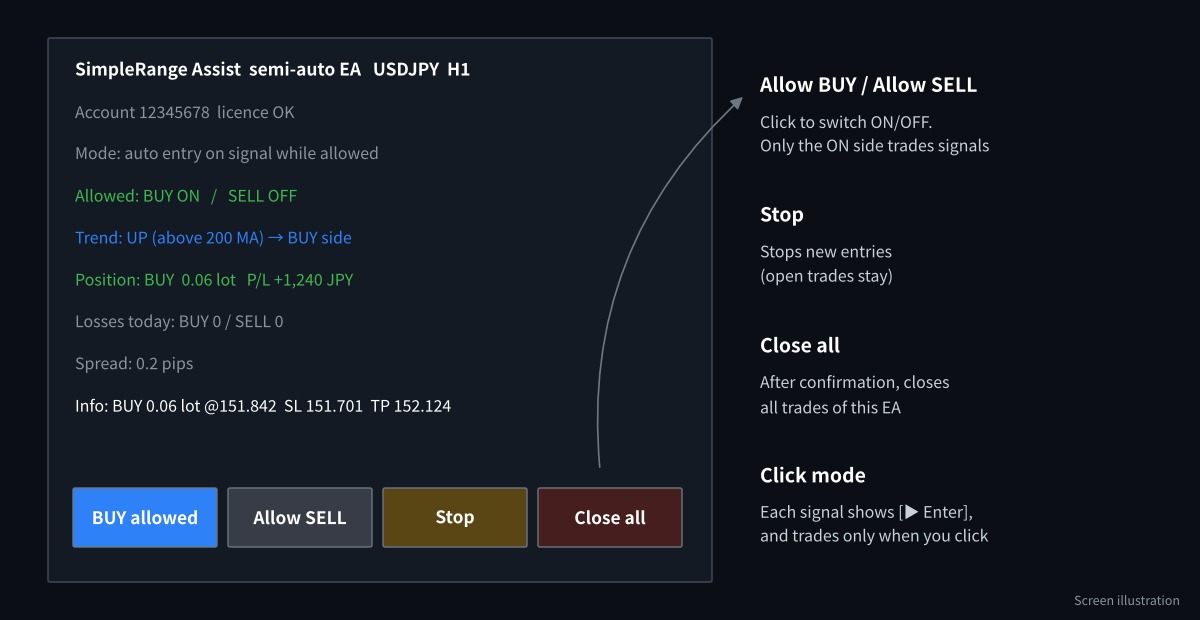
The Assist EA panel and buttons
- Attach SimpleRange Assist to the same chart and turn on AutoTrading.
- Look at the market. If you agree with the trend, click Allow BUY (or Allow SELL).
- The EA enters on the next signal in that direction, with stop-loss and a 2R target from the actual fill price.
- Click Stop before major news. Open trades keep their stop-loss and target.
Recommended settings
| Item | Default | Notes |
|---|---|---|
| Timeframe | H1 | M15 and H4 also work. Lower timeframes give more signals and more noise. |
| Pairs | Major pairs | Low-spread pairs such as EURUSD, USDJPY, GBPUSD. Use the CurrencyPower Meter to pick trending pairs. |
| Risk per trade | 1% of balance | Fixed lot and maximum lot are available. |
| Target | 2R | Adjusted before resistance (minimum 1.5R). |
| Spread limit | 3 pips | The EA skips entries above this. |
| Friday | 21:00 server time | No new trades; the EA closes open trades. |
When it works well, and when it does not
Works well
- Steady trends with regular pullbacks
- Liquid sessions with normal spreads
Be careful
- Sideways markets around the 200 MA (frequent direction changes)
- Major news releases and very fast markets
- Weekends and holidays (gaps can skip the stop-loss)
Frequently asked questions
Do I need both files?
No. The Navigator alone is enough for manual trading. Add the Assist EA if you want it to place and manage trades for you.
Will the EA trade while I am away?
Only in the direction you allowed, and only while MT4/MT5 is running. Use a Windows VPS if your computer is not always on.
Can I change the lot size?
Yes. The default is 1% risk of balance. You can switch to a fixed lot and set a maximum lot.
Get SimpleRange free
Open an HFM or RoboForex account through our partner link, then send the request form. We build the files for your account number.
Compensation disclosure: Forex Top Team receives introducing-broker compensation from HFM and RoboForex based on the trading activity of referred clients. Client funds are held by the broker in the client’s own account; we never hold client funds. Nothing on this page is financial, investment, legal or tax advice.