
Monster Profit EA · MT4 Installation Guide
Install once.
Verify every setting.
Follow this five-step guide to install Monster Profit EA,
select the correct chart and timeframe, allow the required
WebRequest URL, and confirm that automated trading is active.
MetaTrader 4
EURUSD
M15
fxdatapro.com
Confirm the platform, chart and lot size first
This EA is intended for the MQL4 / MT4 environment.
Do not enable AutoTrading until the EA file, EURUSD chart,
M15 timeframe, initial lot size and WebRequest URL have
all been checked.
Official Telegram channel
Use the channel for current notices and setup support.
Transfer the EA file
Place the file in the Experts folder
- Download the EA and note where the file was saved.
- Select and copy the EA file.
- Open your MetaTrader 4 data folder.
-
Paste the file into the Experts folder.
If Windows requests administrator permission, select Continue.
Folder destination
Expert Advisor files belong in the Experts folder—not the
Indicators folder.
MQL4 → Experts → your EA file

Copy the EA file into the MT4 Experts folder.
Attach the EA to the chart
Use the Navigator panel
- Launch MetaTrader 4.
- Open Expert Advisors in the Navigator panel.
- Drag Monster Profit EA onto the chart you want to use.
When the settings window opens
Review the Common and Inputs tabs before selecting OK.
Do not assume the default lot size is suitable for your account.
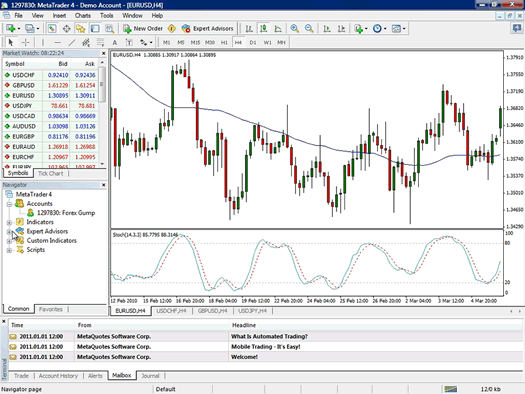
Drag the EA from Expert Advisors onto the intended chart.
Configure the chart and lot size
EURUSD
M15 · 15 minutes
Basic setting check
- Confirm that the EA is attached to EURUSD.
- Set the chart timeframe to M15.
- Review every input and alert setting.
-
Adjust only the initial lot value according to your capital
and selected risk profile.
Do not activate it yet
Finish the WebRequest setup in Step 4 before enabling AutoTrading.
Using the wrong chart, timeframe or lot size may produce
unintended operation.
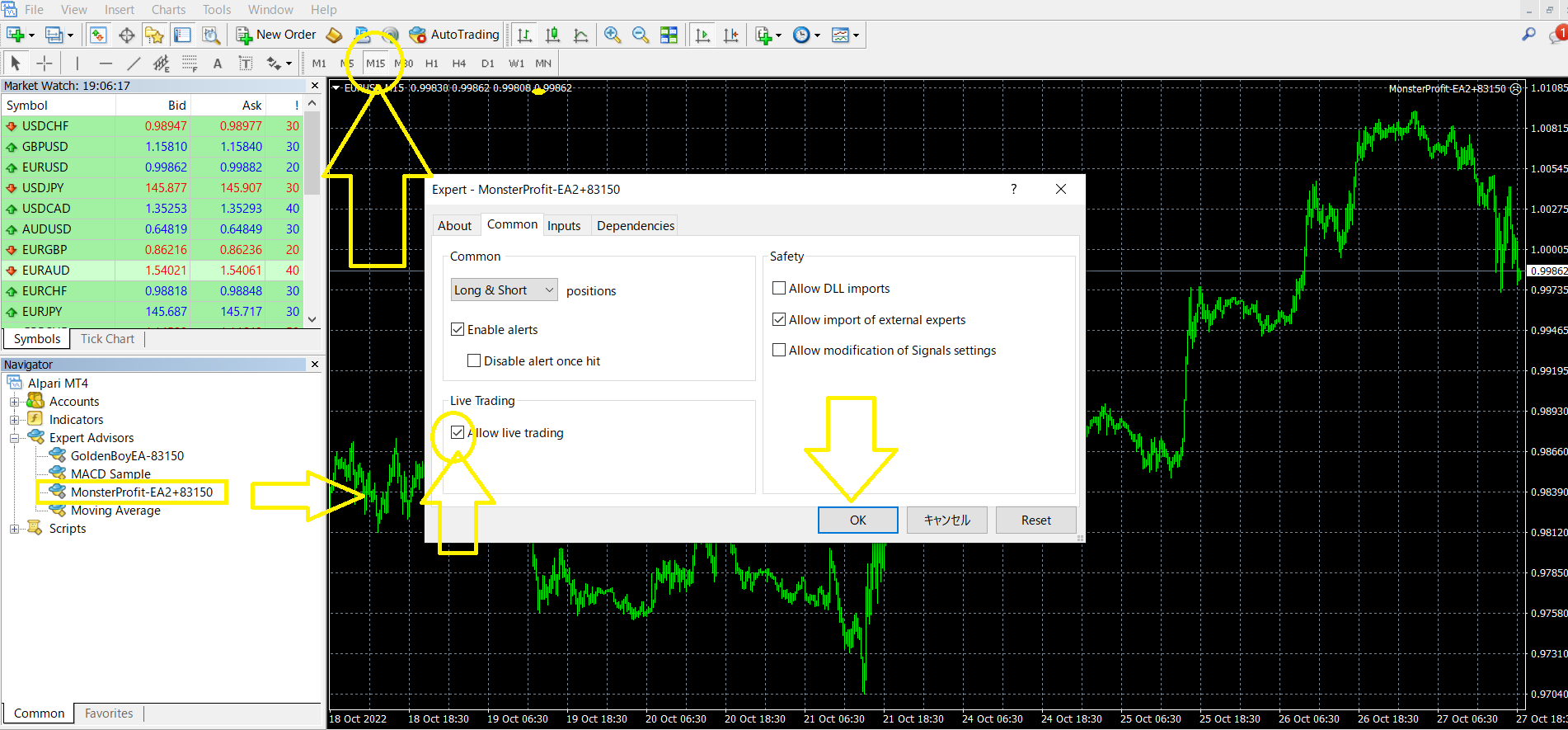
Confirm the correct chart and M15 timeframe.

Review the EA input values before selecting OK.
Standard account
Reference for capital above $45,000
0.15 lot
0.10 lot
Micro account
Reference for capital below $45,000
1.5 lots
1.0 lot
Lot-size note:
These values are setup references, not guarantees or personalized
financial advice. Select a size that fits your capital,
broker specifications and ability to absorb losses.
Allow the WebRequest URL
Add the URL in MT4
- Open Tools → Options in MT4.
- Select the Expert Advisors tab.
- Enable WebRequest access for listed URLs.
- Add the URL below exactly as shown.
https://fxdatapro.com/Required URL
Why this setting matters
The EA requires this permission to access its external
economic-data source. If the address is omitted or entered
incorrectly, the EA may not operate as intended.
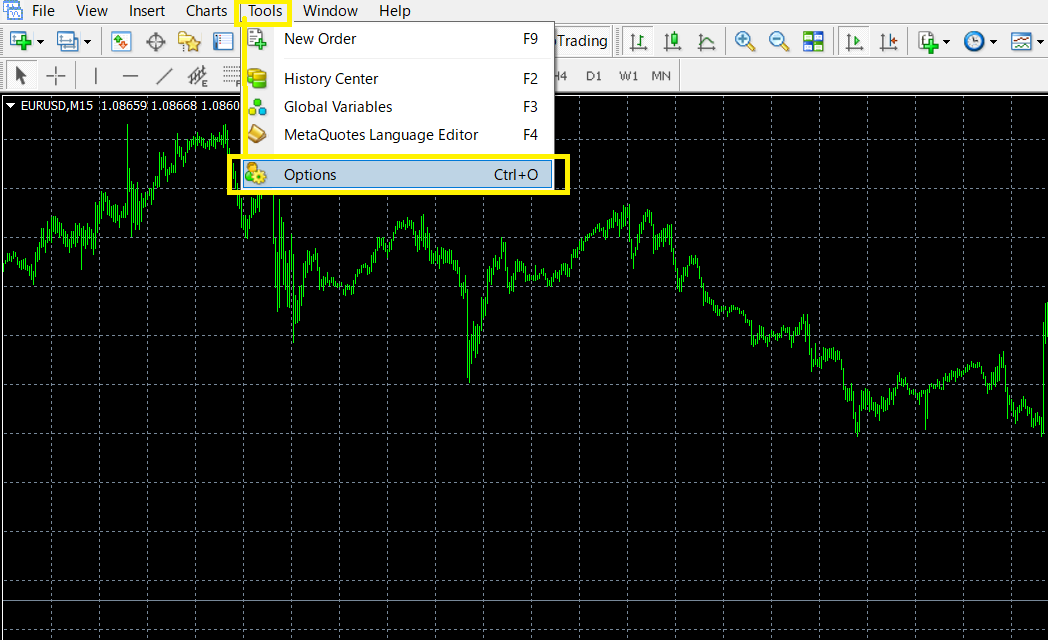
Open the Options window and select Expert Advisors.
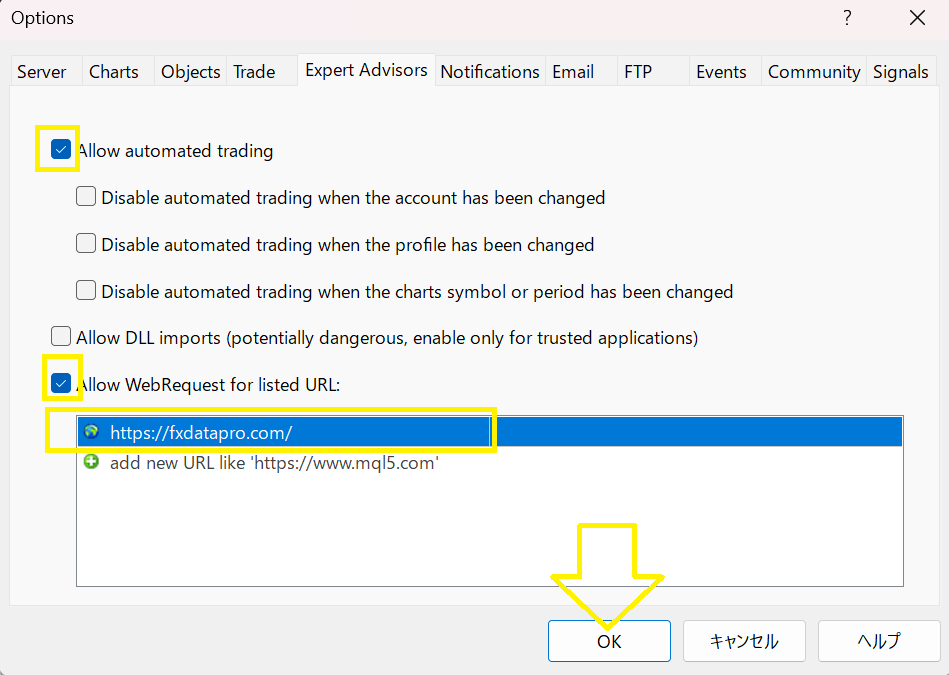
Add fxdatapro.com to the allowed WebRequest list.
Enable AutoTrading
Confirm the EA status
Check the EA name and status in the upper-right corner of the chart.
A yellow status label indicates that the setup has been recognized.
Turn on AutoTrading
Select the AutoTrading button at the top of MT4.
When activation succeeds, a smiling face appears beside
the EA name in the chart’s upper-right corner.

Confirm the AutoTrading button and active EA status.
MetaTrader 4 / MQL4
Stored in MQL4 → Experts
EURUSD selected
M15 selected
fxdatapro.com allowed
Smiling face visible
Setup complete
Monster Profit EA is ready to run
Keep MT4 running and continue to monitor account conditions,
broker messages and risk exposure. For current notices or assistance,
use the official support channel.
Risk disclosure:
Forex and CFD trading involves substantial risk and can result in the
loss of capital. Setup examples and lot-size references are provided
for general information only. They do not guarantee future performance
and are not personalized investment advice.